


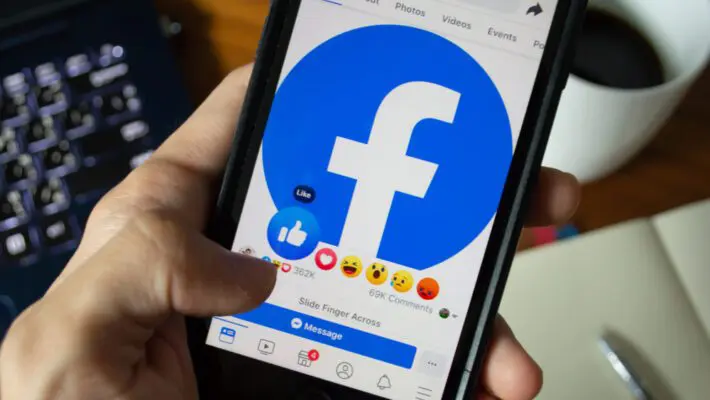
Recently, I learned that Facebook gives us the option to hide like counts on posts. I tried it out and found my experience much more relaxing. In this guide, I’ll walk you through exactly how I hide likes on Facebook, covering everything I learned: hiding reaction counts on my own posts so others can’t see them, hiding likes on other people’s posts in my feed, and even hiding the list of pages I’ve liked. I’ll cover how to do it on the mobile app and on the desktop site, for both personal profiles and Facebook Pages. Let’s dive in!
Why Hide Like Counts on Facebook?
Before we get into the steps, you might wonder why someone would hide the number of likes or reactions on Facebook. Speaking from personal experience, there are a few good reasons:
- Reduce Social Pressure: I felt a sense of relief when I hid my like counts. Without that little number next to my posts, I stopped worrying whether a photo got 5 likes or 50. I can share things because I want to share them, not because they’ll rack up points in popularity. It helps shift the focus back to the content itself, not the score tally.
- Avoid Comparisons: It’s human nature to compare, and on social media it can be toxic. Seeing that my friend’s post got more reactions than mine (or vice versa) was feeding unnecessary self-comparisons. Hiding those numbers has helped me stop doing the mental “like count” competition. I engage with posts because I actually like them, not because a thousand others did.
- Mental Well-Being: There’s some peace of mind that comes from not constantly seeing those metrics. If a post doesn’t get many likes, I don’t have to know – and I won’t feel bad about it. On the flip side, if it gets a ton of likes, I won’t feel pressured either. For me, it removes a layer of anxiety and “performance” from using Facebook.
- Focus on Genuine Engagement: I’ve noticed when like counts are hidden, people (myself included) focus more on comments and the content of the post. The conversations become more important than the numbers. It encourages more meaningful interaction – like leaving a thoughtful comment – rather than just tapping like because a post is already popular.
- A Cleaner Feed: This one’s minor, but my news feed feels a bit cleaner visually without the like and reaction totals under every post. I still see the Like, Comment, and Share buttons; I just don’t see “John Doe and 24 others” under a post anymore. It declutters the feed, which I appreciate.
Of course, hiding like counts isn’t for everyone. If you’re running a business page or are an influencer, publicly showing strong engagement can be beneficial. Some brands worry that hiding these metrics could seem less transparent. It’s totally up to you – Facebook simply gives us the choice. I decided it was right for me, and I’ve been happy with it. Now, onto the how-to part so you can try it as well.
Hiding Like Counts on Your Own Posts
The first setting we’ll tackle is hiding the number of reactions on posts you share. By turning this on, you’ll make it so no one else can see how many likes/reactions your Facebook post has received. (You as the author can still see it privately if you really want, by clicking to view the reactions – but it won’t be displayed on the post for others.) This is great when you want to post freely without that public metric. Here’s how I do it:
On the Mobile App (Android & iPhone)
- Open the Facebook app and log in, if you haven’t already. From the home feed, tap the menu icon – that’s the three horizontal lines. On Android this menu is at the top-right corner; on iPhone it’s bottom-right.
- Scroll down in the Menu and tap “Settings & Privacy.” This will expand a set of options. From those, tap “Settings.” (On some versions of the app, there might be a gear icon you tap directly, which jumps straight into Settings.)
- In the Settings page, look for the “Preferences” section. Under Preferences, tap “Reaction Preferences.” This is the magical place where the like/reaction count controls live.
- You’ll see two toggles here: one labeled “On your posts” and one labeled “On posts from others.” To hide like counts on your own posts, flip the switch next to “On your posts.” When this is on, it means your friends and followers will no longer see the total number of reactions on the posts you share on your profile or in their news feed.
- That’s it! You can navigate back to your feed. Now whenever you post something on your timeline, people might still see the icons of who reacted (and of course they can still click “Like” or any reaction), but they won’t see a number or list of reaction counts. Only you can see that information privately if you tap on your own post’s reactions.
A couple of notes from my experience using this:
- This setting applies to all your future posts and even your past posts immediately. You don’t have to hide counts one by one – it’s a blanket setting for your profile.
- If at some point you want to show the like counts again (maybe you’re curious or you changed your mind), just follow the same steps and toggle “On your posts” off. The like counts will instantly reappear on all your posts.
- As of now, Facebook Stories don’t show like counts anyway (people can react but it’s not public), and for Reels or Marketplace listings, Facebook still shows reaction counts regardless of this setting. So this mainly affects regular posts you make in the news feed or on your profile timeline.
On the Desktop Website
If you’re more of a computer user or you want to double-check the setting on a bigger screen, you can also enable this via the Facebook website:
- Log in to Facebook.com on your browser.
- In the top-right corner of the site, click the account menu. This might appear as your profile picture icon (on newer Facebook interface) or a down-arrow symbol. Click that, and a dropdown menu appears.
- Click “Settings & privacy,” and then click “Settings.” This will take you to the main Settings page.
- Look at the left side menu on the Settings screen. You should see a section for preferences. Click on “Privacy” or directly on “Reaction Preferences.” (Facebook sometimes nests Reaction Preferences under Privacy or News Feed settings. On the latest interface I used, “Reaction Preferences” was directly under the Privacy category in the left sidebar.)
- On the Reaction Preferences page, you’ll see the same two options: “Hide number of reactions on your posts” and “Hide number of reactions on posts from others.” For your own posts, click the toggle or checkbox for the setting that hides reactions on your posts. Once you activate that, it will stop displaying like counts on anything you post.
- There might not be a “Save” button – changes take effect as soon as you toggle. You can navigate away once it’s switched on.
The desktop method achieves the same result. I found it straightforward. One thing I noticed: on the web, the setting might explicitly say “Show number of reactions on your posts” and you would uncheck it to hide likes. So if you see a checkbox instead of a toggle, removing the checkmark = hiding the like count. Don’t let the wording confuse you – essentially make sure it’s set to NOT show the counts.
Now my Facebook posts are blissfully free of public like counts. Friends can still react (👍 ❤️ 😮 etc.), and I can still see who reacted. But only I know the total count, and I’m not paying attention to it anymore. It’s very liberating as a user!
Can I hide like counts for a single specific post? Yes – although the methods above turn it off for all posts, Facebook also has an option to do it per post. When you’re creating a new post, you might find an option under Post Settings or Advanced settings to “Hide like and view counts for this post.” If you toggle that on before posting, that individual post will hide its like count. You can even do this after posting: click the three-dot menu on one of your existing posts, and if the feature is available, you’ll see “Hide like count” (or “Unhide like count” if it’s currently hidden). This is similar to how Instagram allows per-post like count hiding. However, not everyone uses this on Facebook because the global setting we just did is simpler for blanket coverage. I personally just use the global setting so I don’t have to think about it each time.
Hiding Like Counts on Other People’s Posts in Your Feed
The next thing I did was hide seeing those reaction numbers on other people’s posts that show up on Facebook. Why? Because sometimes I’d catch myself thinking “Wow, this post only got a few likes, is there something wrong with it?” or conversely “Everyone’s liking this, should I like it too?” – and I realized I don’t need those thoughts. I’d rather judge a post by its content, not by how popular it is. Facebook’s settings allow us to stop displaying like counts on posts from others in our news feed.
If you want to do this too, here’s how:
On the Mobile App (Android & iOS)
- Go to the Settings -> Reaction Preferences page again by following the same steps as earlier. (Menu ≡ -> Settings & Privacy -> Settings -> Reaction Preferences).
- This time, look for the toggle labeled “On posts from others.” Turn that on.
- When this setting is on, it means you will no longer see the total number of reactions on other people’s posts as you scroll Facebook. For example, if a friend’s photo has 100 likes, it will just say “Friend’s Name and others reacted” without a number, or it might simply show a few reaction emojis without a count. The info about exactly how many people liked it is hidden from you.
- Once you toggle it, back out to the feed and take a look – you might immediately notice the change. Posts will still show the Like/Comment/Share buttons, and you can still tap to see who reacted, but the bold numeric count is gone.
I found this super useful. It made browsing Facebook feel less like reading a leaderboard. One thing to mention: this doesn’t stop other people from seeing counts on those posts (they control their own settings). It’s purely on your own screen. So you’re not affecting your friends’ experience or the poster’s metrics; you’re just choosing not to see those numbers yourself.
If you ever want to bring back the counts in your feed, just toggle “On posts from others” off again. I occasionally turn it back on out of curiosity, but I mostly leave it off now.
On the Desktop Website
- On Facebook’s website, go to Settings -> Reaction Preferences as described in the earlier section.
- There will be an option that says something like “Hide number of reactions on posts from others” or a checkbox for “On posts from others.” If it’s a checkbox list, remove the check next to “Show number of reactions on posts from others.” If it’s toggles, turn the toggle on to hide them (yes, it’s a bit counter-intuitive: turning on the hide option means turning off the display… but basically make sure it indicates that those counts are hidden).
- That’s it. Navigate back to the Home/News Feed and you should see posts without any totals listed under the reaction icons.
Now, one quirk: if you’re in a Facebook Group or viewing a Page’s content, those might still show engagement numbers depending on context. The “posts from others” setting primarily affects the main feed. In my experience, it hides counts on all posts in the feed, whether they’re friends, pages I follow, or groups. But if you go looking at older posts or certain sections, you might occasionally see a number. It’s pretty thorough overall.
What About Facebook Pages I Manage?
If you’re managing a Facebook Page (say for a business or community) and you want to hide the like counts on posts made by that Page, the approach is essentially the same but you have to do it while “using” Facebook as your Page. For example, I help run a small Facebook Page, and to hide like counts there I did the following:
- On desktop, I switched to the Page profile (there’s a menu where you can toggle between your personal profile and a Page if you’re an admin). Then I went to the Page’s Settings and looked for Reaction Preferences under the Page settings. The option was there to hide reactions on the Page’s posts, which I enabled. Now, when the Page posts something, the number of likes isn’t shown to the public.
- On mobile, Facebook has a “Page Manager” or now the new Pages experience where you can switch into your Page’s view. If you do that and navigate to settings, you should find Reaction Preferences for the Page as well.
Not everyone may have this, depending on how Facebook’s interface changes. If you don’t find separate settings for the Page, it might be that Facebook applies your personal setting to content you post as a Page. (However, according to Facebook’s help, page admins cannot universally hide like counts for all viewers – it may ultimately depend on each viewer’s preference. So even if you hide counts while using the page, another person might still see them unless they’ve hidden it on their side.)
In short, if you’re a page admin, you can try to disable reaction counts in your view, but your followers could still have them on. Many brands simply choose to ignore the like counts rather than attempting to hide them, or they rely on the fact that more users may turn off counts for themselves over time.
Hiding Your Facebook “Likes” (Pages and Interests)
Aside from reaction counts on posts, Facebook also has a section on your profile that shows all the Pages you’ve liked (and other interests). Maybe you don’t want people snooping through that list – I know I decided to hide mine when I realized anyone could scroll through and see all the bands, TV shows, and random pages I’ve thumbed-up over the years. It felt a bit too personal, or sometimes just not relevant for others to see.
There are two ways to hide your Likes list: via the profile’s Likes section, or via privacy settings. I’ll describe the direct way I did it on desktop, as well as a quick method on mobile.
On Desktop (Personal Profile Likes)
- Go to your Facebook profile page (click your name or profile picture from the top bar).
- Under your cover photo and bio, you have a horizontal menu (Timeline, About, Friends, Photos, More…). Click “More.” In that dropdown, click “Likes.” This will open the page that shows all the categories of things you’ve liked – from movies and music to books, sports teams, etc.
- At the top right of this Likes page, there’s an ellipsis (three dots) button. Click that. You’ll see options including “Edit the Privacy of Your Likes” (and possibly “Hide Section”).
- Click “Edit the Privacy of Your Likes.” A pop-up window will appear, showing a list of categories (such as Movies, Television, Books, Sports Teams, etc., basically all the types of pages one can like).
- For each category that you want to hide, click the privacy icon next to it (it might show a globe icon for Public, or friends icon if it’s limited to friends). Then select “Only me.” This means only you can see pages in that category on your profile. I set almost every category to Only Me to be safe.
- After adjusting each, click Close or just exit that pop-up. Now your Likes section is hidden from other people. If someone visits your profile and clicks on your Likes, they either won’t see anything or they might not even see the Likes tab at all, depending on whether you hid the section entirely.
- (Optional) If you want to hide the Likes section completely, you could choose “Hide Section” instead in step 3. On my profile, after setting all categories to “Only me,” the effect was essentially the same as hiding the section – nobody can see any content there. But “Hide Section” literally removes the Likes tab from your profile view for others, which is an extra step if you want to be thorough.
A quick tip: You cannot hide individual page likes one by one – Facebook doesn’t let you say “hide that I like Star Wars but not that I like The Beatles,” for example. It’s all pages in a category or nothing. So I considered if I was okay with people seeing any of the pages in a category; if not, I hid the whole category.
From my perspective, hiding your liked pages is a smart privacy move. It also keeps your profile focused – people can see your posts and friends, but they don’t automatically get a rundown of your tastes and interests unless you want them to.
On Mobile (Personal Profile Likes via Follow Settings)
If you primarily use Facebook on your phone, there’s a shortcut to do the above using the app:
- Open the Facebook app, go to your profile (tap your profile picture on the top of the app or menu and then your name).
- Tap the three-dot button on your profile page (this opens profile settings/options like Edit Profile, Archive, etc.).
- Look for an option called “Follow Settings” or anything related to privacy on your profile. Tap that. (Sometimes it might be labeled as “Privacy Settings,” but as of the latest app, “Follow Settings” contains what we need.)
- In the Follow Settings, find “Who can see the people, Pages, and lists you follow.” This setting governs the visibility of your “following” list, which includes the Pages you’ve liked (since you essentially “follow” a page when you like it).
- Change that to “Only me.” If “Only me” isn’t directly visible, tap “More” or “See more” to find it among the options. Selecting “Only me” will ensure that no one else can see the list of pages (and people) you’re following.
- Save or confirm if needed (usually it updates immediately).
After doing this, I checked my profile from a friend’s account and confirmed that my Likes section was no longer viewable. Mission accomplished.
For Facebook Pages (as a Page admin): If your concern is the Pages that your Facebook Page (the one you manage) has liked, the process is a bit different. A Facebook Page can like other pages (e.g., a coffee shop page might like the local chamber of commerce page). Those liked pages appear on your business page’s profile under a section typically called “Likes” or “Likes by this Page.” If you want to hide that:
- Go to your Page’s profile (using Facebook as the Page).
- Click the “More” button on the Page, and you might find a “Likes” section similar to a personal profile.
- There could be a “Hide Section” option for the Page’s liked pages. In fact, from my earlier instructions via Sprout Social, on a brand Page the only option given was “Hide Section” (you likely won’t have a per-category privacy choice for pages, it’s all or nothing).
- Choose to hide that section. This will remove the display of what other pages your Page likes.
Many business pages do this to avoid showing affiliations or just to keep things professional. For instance, if I manage “Alice’s Bakery” page, I might not want every visitor to see all the other pages we follow. Hiding it keeps the page streamlined.
Keep in mind, when it comes to followers of your Page (the people who liked your page), Facebook no longer emphasizes “Like count” for pages as much – they focus on Followers now. Those counts (like “10,000 people like this page”) are generally public on Pages and you can’t hide the number of followers/likes your Page has. That’s a different metric and Facebook treats that as public info for pages. What we’re hiding here is the outward likes and follows (either your profile’s interests or your page’s liked other pages).
A Few More Things to Know
- The changes are reversible: If you hide reaction counts or your liked pages and later decide you miss them or need them visible, you can always go back into settings and undo the changes. For example, sometimes I turn reaction counts back on briefly if I’m really curious about a specific post’s engagement. Facebook makes it easy to toggle these on or off at will.
- This won’t hide Comments or Shares counts: Keep in mind, we’re specifically hiding the number of reactions (likes, loves, etc.). The number of comments a post has or how many times it’s been shared might still be visible. There’s no user-facing setting to hide those – and often those aren’t as prominent or problematic, so it hasn’t bothered me. But just so you’re aware, if a post has 50 comments, people will see “50 comments” below it; they just won’t see the 100 likes that might have come with it.
- Not available on Facebook Lite: If you use the stripped-down Facebook Lite app, unfortunately the option to hide like counts isn’t there. Facebook Lite doesn’t include every feature, and as of the last time I checked, Reaction Preferences isn’t in Lite. I had to use the regular Facebook app or the web version to change the setting.
- Applies to feed posts, not all Facebook content: As mentioned earlier, certain content like Reels, videos in Watch, or Marketplace listings may still show their view counts or reaction counts. Facebook hasn’t extended the hide-likes functionality to every corner of the platform. My personal strategy is to just ignore those numbers – since the main place I felt the pressure was with the typical posts in the feed.
- Others’ settings may vary: Just because I don’t see like counts doesn’t mean my friends don’t. Some of my friends might still keep theirs on. Likewise, if I hide my own post’s like count, no one sees the number on that post except anyone who hasn’t gotten the feature (for example, if someone is using an old version of the app or a region where it’s not available – though by now it’s rolled out globally, so that’s rare). In general, assume that if you turned off like counts on your posts, basically no one will see those numbers, which is the goal. And if you turned off seeing others’ counts, that’s just your personal view.
- Why not hide likes? I’ve talked a lot about the good side, but I’ll be fair: Some people or brands choose not to hide likes because those numbers can serve as social proof. If you’re running a Facebook Page and a post gets thousands of likes, that can catch more attention and lend credibility. As a personal user, you might simply enjoy the feedback of seeing the count. That’s perfectly okay. Facebook’s giving us choice here – you can do what feels right for your experience. In my case, I found it beneficial to hide them to break a bad habit of mind; others might not feel that pressure at all or might have reasons to keep them visible. If you don’t want to hide your likes but you are unsatisfied with the normal amount of likes you get, you can always use QQTube who sell’s Facebook Page Likes and Facebook Post Likes.
My Facebook Feels Different Now – In a Good Way
After using Facebook with like counts hidden for a while, I wanted to share a bit of how it changed my interaction:
- I scroll more calmly, if that makes sense. Posts appear more equal now – whether something has 2 reactions or 200, it looks the same to me at first glance. I engage more based on content. Sometimes I don’t even think about how many others reacted; I just read the post, maybe leave a comment if I have something to say, and move on.
- When I post updates or photos, I genuinely forget to check how many likes they got. A few friends might comment or I’ll get some notifications of reactions, but without that number flashing on the post, I don’t fixate on it. It’s really nice. I feel more confident sharing what I want to share.
- I’ve noticed no negative impact socially. No one has complained “why can’t I see your likes?” or anything. In fact, many of my friends also hide their like counts now (Facebook doesn’t announce it, but I could tell because sometimes I see “Friend and others reacted” without a number on their posts – meaning they hid their own counts). It’s becoming more common as people discover the setting.
Ultimately, hiding likes on Facebook is about personal preference and control. I love that I (and you!) have the ability to tune our social media experience to be a little less numbers-driven. If you’re like me and find that those little thumbs-up totals were affecting your mood or behavior, give these steps a try. It’s a small change that can make using Facebook feel a lot more enjoyable and genuine.
Happy posting – and remember, the value of a post isn’t in a number, but in the connections and conversations it sparks. Enjoy Facebook on your own terms!